2 September 2026 · 8 min read
You Don't Need a SaaS Stack. You Need Twenty Minutes and a Spreadsheet.

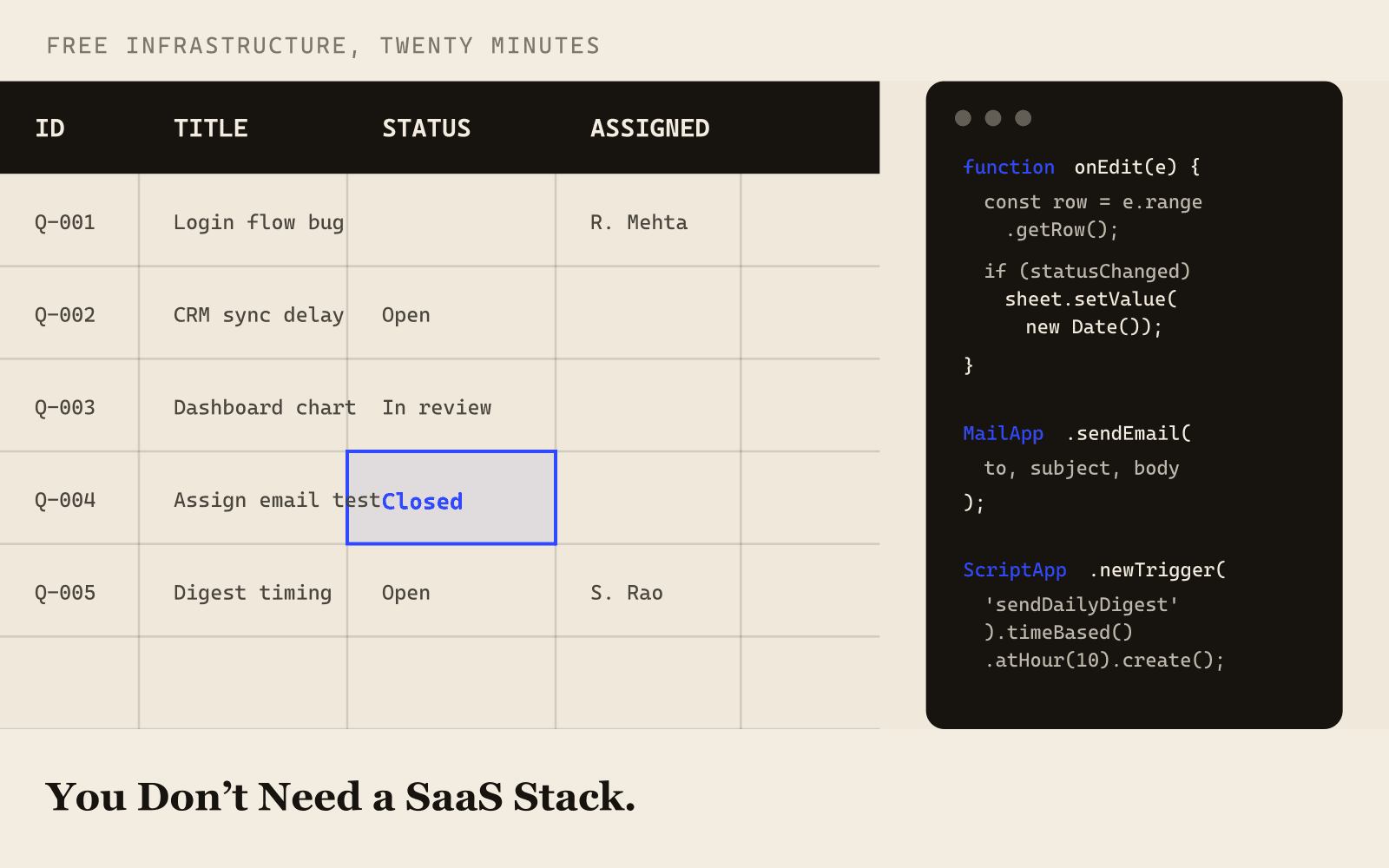
Most founders think automation starts with a credit card. Zapier subscription here, Notion AI add-on there, a "lightweight" CRM that somehow costs $49/seat/month before you've closed a single deal. By month three you're paying for six tools to track work that could live in one spreadsheet with about 400 lines of code behind it.
I run a small team. We needed an issue tracker for testers and developers, and a CRM for two sales reps chasing coaching institutes. Instead of signing up for Linear and HubSpot, I built both on infrastructure I already had, for free, in an afternoon: automated ID generation, automated timestamps, automated email notifications, live dashboards with charts, and twice-daily digest emails, all running on Google Sheets and Google Apps Script.
Key Takeaways
- Google Workspace already bundles a database (Sheets), a backend runtime (Apps Script), an email service (MailApp), and a scheduler (ScriptApp.newTrigger()), no extra subscription required.
- The whole system reduces to one pattern: onEdit is a webhook. Everything else, IDs, timestamps, notifications, dashboards, is domain logic layered on top of that single hook.
- The real cost of this approach isn't the code, it's a handful of sharp edges: merged cells across frozen columns, oldValue disappearing on multi-cell pastes, and dashboards that go stale silently. Know them before you build.
- This is a starting point, not a permanent architecture. Once you need row-level access control or real concurrency guarantees, that's the signal to graduate to dedicated tooling, not before.
This isn't a "look what I built" post. It's a "here's exactly how the pieces fit together, and here's what breaks when they don't" post, so you can build your own version without the debugging detour I went through.
What Infrastructure You Already Have and Aren't Using
If your business runs on Google Workspace, or even a free personal Google account, you already own four pieces of infrastructure that most SaaS "automation platforms" are just a thin, marked-up UI wrapped around:
- Google Sheets, a real relational-enough database with formulas, filtering, and conditional formatting
- Google Apps Script, a full JavaScript runtime attached to every Sheet, Doc, and Form, with zero setup cost
- Gmail sending, 100 emails a day free, more on Workspace, callable from three lines of code
- Time-based triggers, a built-in cron scheduler, no server required
That's a database, a backend, an email service, and a scheduler. You're not behind by skipping the paid tools that repackage these primitives. You're ahead by understanding what they automate under the hood.
| Function | Paid stand-in founders reach for | Typical monthly cost (5-person team) | This stack's cost |
|---|---|---|---|
| Workflow automation | Zapier (Starter/Team tier) | ~$20-70 | $0 |
| Internal wiki + AI assist | Notion + Notion AI add-on | ~$50-100 | $0 |
| Lightweight CRM | Entry-tier CRM at ~$49/seat | ~$100-250 for 2-5 seats | $0 |
| Issue tracker | Linear (Business tier) | ~$40-60 | $0 |
Costs are approximate list prices as of 2026 and vary by plan and seat count. The point isn't the exact figure, it's that all four rows reduce to the same four Google primitives listed above.
The Core Mental Model: A Spreadsheet Is a Table, and onEdit Is a Webhook
Everything in this approach reduces to one idea. Every time someone changes a cell in a Google Sheet, Apps Script can fire a function that sees exactly what changed, where, and by whom. That single hook is the entire foundation for auto-generated IDs, timestamps, status transitions, and notifications. You're not building a workflow engine, you're listening for edits and reacting to them.
function onEdit(e) {
  const sheet = e.range.getSheet();
  const row = e.range.getRow();
  const col = e.range.getColumn();
  // e.oldValue holds the previous value, for single-cell edits
  // now do whatever the edit implies
}
That's the whole pattern. Everything else below is domain logic on top of it.
Auto-Generated IDs, Without a Database
You don't need Postgres to get sequential IDs. Read the existing ID column, find the highest number, increment it:
function getNextId(sheet, idColumn, prefix) {
  const lastRow = sheet.getLastRow();
  let maxNum = 0;
  if (lastRow > 1) {
    const ids = sheet.getRange(2, idColumn, lastRow - 1, 1).getValues();
    ids.forEach(([val]) => {
      const escapedPrefix = prefix.replace(/[.*+?^${}()|[\]\\]/g, '\\$&');
      const match = typeof val === 'string' && val.match(new RegExp('^' + escapedPrefix + '-(\\d+)$'));
      if (match) maxNum = Math.max(maxNum, parseInt(match[1], 10));
    });
  }
  return prefix + '-' + String(maxNum + 1).padStart(3, '0');
}
Escaping the prefix keeps the match from breaking silently if it ever contains regex metacharacters like '.' or '(', worth keeping even if your current prefixes are plain letters. Trigger the whole function the moment someone types into a "Title" or "Name" field on a row that doesn't have an ID yet. That's it, Q-001, L-047, whatever prefix fits your domain.
Why Timestamps Should Never Be Typed by a Human
Any field labeled "Created," "Reported," "Assigned," or "Closed" is a field a human should never fill in manually. The edit event already carries the moment it happened:
if (statusJustChanged && newStatus === 'Closed') {
  sheet.getRange(row, closedDateColumn).setValue(new Date());
}
This sounds trivial written out, but it's the difference between data you can trust and data nobody bothers to fill in. The instant something is free, people actually do it.
Can You Send Automatic Email Notifications Without a Third-Party Service?
This is the part most founders assume needs Zapier or SendGrid. It doesn't. MailApp.sendEmail() is a native Apps Script call, documented in Google's own Apps Script quota reference:
function sendAssignmentEmail(recipientEmail, subject, body) {
  MailApp.sendEmail(recipientEmail, subject, body);
}
Wire it to fire the moment an "Assigned To" cell changes, and whoever picks up the work gets notified instantly, no polling, no separate app to check. It sends from your own Gmail address using your daily sending quota (100/day on the free tier, more on Workspace, per Google's Apps Script quota documentation); for a small team, you will never come close to that ceiling.
Practical tip: don't hardcode subject lines and body text inline in your logic. Pull them into template constants with {{placeholder}} tokens and a simple string-replace function:
function fillTemplate(template, values) {
  let result = template;
  Object.keys(values).forEach(key => {
    result = result.split('{{' + key + '}}').join(values[key] || '');
  });
  return result;
}
Now your actual message wording lives in one obvious place, editable without touching logic. Build a previewEmail() function that logs the rendered output without sending anything, and you get a WYSIWYG-adjacent workflow for free, entirely inside the script editor.
How Do You Run Scheduled Digests Without a Cron Server?
Apps Script's ScriptApp.newTrigger() gives you time-based execution with zero infrastructure:
ScriptApp.newTrigger('sendDailyDigest')
  .timeBased()
  .atHour(10)
  .everyDays(1)
  .create();
One caveat worth knowing before you rely on it: per Google's own trigger documentation, Apps Script guarantees the trigger fires within the requested hour, not at the exact minute. That's good enough for "check overdue items every morning," not good enough for anything that needs second-level precision. If your business logic genuinely needs precision timing, that's where you'd graduate to real infrastructure, but for internal reminders, "sometime in that hour" is fine.
Dashboards Without a BI Tool
A dashboard is just aggregation math written into cells, refreshed on a timer. You don't need Looker or Metabase for a team of five:
function refreshDashboard() {
  const data = mainSheet.getDataRange().getValues();
  const counts = {};
  data.forEach(row => {
    const status = row[statusColumnIndex];
    counts[status] = (counts[status] || 0) + 1;
  });
  // write counts into dashboard cells
}
Pair it with sheet.newChart() for a native pie or bar chart reading off those cells, and you have a live dashboard that updates on a schedule, costs nothing, and lives in the same file your team already has open.
The bigger point here: don't build the dashboard first. Build the data collection first, get real rows flowing in, and only add the dashboard once you actually have something worth visualizing. A beautiful chart of zero data is a founder's favorite way to feel productive without shipping anything real.
How Do You Give Each Person a Filtered View Without Separate Logins?
If you have several people who each need to see only their own assigned work, you don't need role-based access control. You need FILTER():
=IFERROR(FILTER(Main!A2:Q, Main!I2:I="Person Name"), "No items assigned yet")One formula, one tab per person, and each tab is a live, read-only-in-spirit view into the master sheet. Nobody duplicates data, nobody manually copies rows around. Change the assignment in the master sheet, and it disappears from one person's view and appears in another's, automatically.
What Breaks When You Wire All of This Together
Everything above sounds simple in isolation. Here's what actually breaks when you combine it, because I hit every one of these:
- You can't merge cells across the frozen/unfrozen column boundary. If you freeze two columns and try to merge a header row that spans the whole sheet, Sheets throws an error, freezing first or merging first doesn't matter, the two features just can't coexist across that line. Color the row background instead of merging if you need a full-width visual header.
- You can't delete the last visible sheet in a spreadsheet. If your setup script deletes and rebuilds a sheet, and that sheet happens to be the only tab in the file, the delete call fails. Insert a disposable placeholder sheet first, do your rebuild, then remove the placeholder.
- onEdit's oldValue only exists for single-cell edits. If you're building any kind of append-only history log, you need the value before the edit to prepend it correctly. Apps Script gives you this via e.oldValue, but only when exactly one cell changed. A multi-cell paste won't have it. Design for that gracefully instead of assuming it's always there.
- Typing into a cell replaces its entire content, it doesn't append. If you want a running log instead of an overwritten note, you cannot parse "old text mixed with new text" after the fact, because by the time your script sees the edit, the old text is already gone from that cell. Capture it via oldValue before it's overwritten, prepend the new entry with a timestamp, then write the combined result back.
- A stat cell that's never explicitly written stays stale forever. If your dashboard refresh function has an early-return for the "no data yet" case, make sure that branch explicitly zeroes every stat cell. Otherwise clearing your data leaves the dashboard showing whatever was there last, silently, with no error to tell you it's wrong.
- Google Apps Script triggers run in the project's timezone, not your personal one. Check Project Settings before assuming "10am" means 10am where you are. It's a two-second check that saves an afternoon of "why isn't this firing."
What actually happened to us: the history-log bug cost us real data. Before we understood that oldValue disappears on multi-cell pastes, a bulk-paste into the notes column silently wiped a week of context on a handful of tickets. We didn't notice until a tester asked why their earlier comment was gone. That's the failure mode this post exists to help you skip.
What This Approach Is Not For
This is not a pitch for running your entire company on spreadsheets forever. The moment you have real concurrency problems, need proper access control down to the row level, or your team grows past a size where "everyone can technically edit everything" stops being fine, that's your signal to graduate to dedicated tooling. Google Sheets has no clean way to say "this person can only edit rows assigned to them," you'd need real backend infrastructure for that guarantee.
But "we might grow into needing that eventually" is not a reason to pay for it on day one. Most tools marketed at early-stage teams solve problems you don't have yet, at a price that compounds monthly whether you use them or not. Build the free version first. Feel the actual pain point that justifies the upgrade. Then, and only then, spend money to solve it.
Frequently Asked Questions
Is Google Apps Script actually free to use?
Yes, for personal Google accounts and standard Google Workspace plans, Apps Script itself has no separate cost. You're bound by Google's quota limits (email sends, script runtime per execution, trigger counts), which are generous enough for a small team's internal tools but worth checking against your expected volume before you build.
How many people can realistically use a system like this?
There's no hard cap from Apps Script itself, but the practical ceiling is the "everyone can technically edit everything" problem described above. Teams under roughly 10-15 people, without a need for row-level permissions, are the sweet spot. Past that, the lack of real access control becomes the limiting factor, not performance.
What happens if two people edit the same row at the same time?
Google Sheets handles concurrent edits at the cell level reasonably well for manual typing, but onEdit-triggered scripts can race if two edits land close together, since each trigger runs as a separate execution. For low-frequency internal tools, this is rarely an issue in practice. It's one of the concurrency limits above that should push you toward real backend infrastructure once volume grows.
The Actual Takeaway
The infrastructure to run a real internal tool, ticketing, CRM, ops tracking, whatever your team needs, is very likely sitting in a product you already pay for or already have free access to. The gap most founders have isn't infrastructure. It's knowing that onEdit, MailApp, and ScriptApp.newTrigger() exist and can be wired together in an afternoon.
You don't need to be a developer to do this. You need to be willing to sit with a spreadsheet, a script editor, and a clear list of "when X happens, do Y." That's the entire skill.